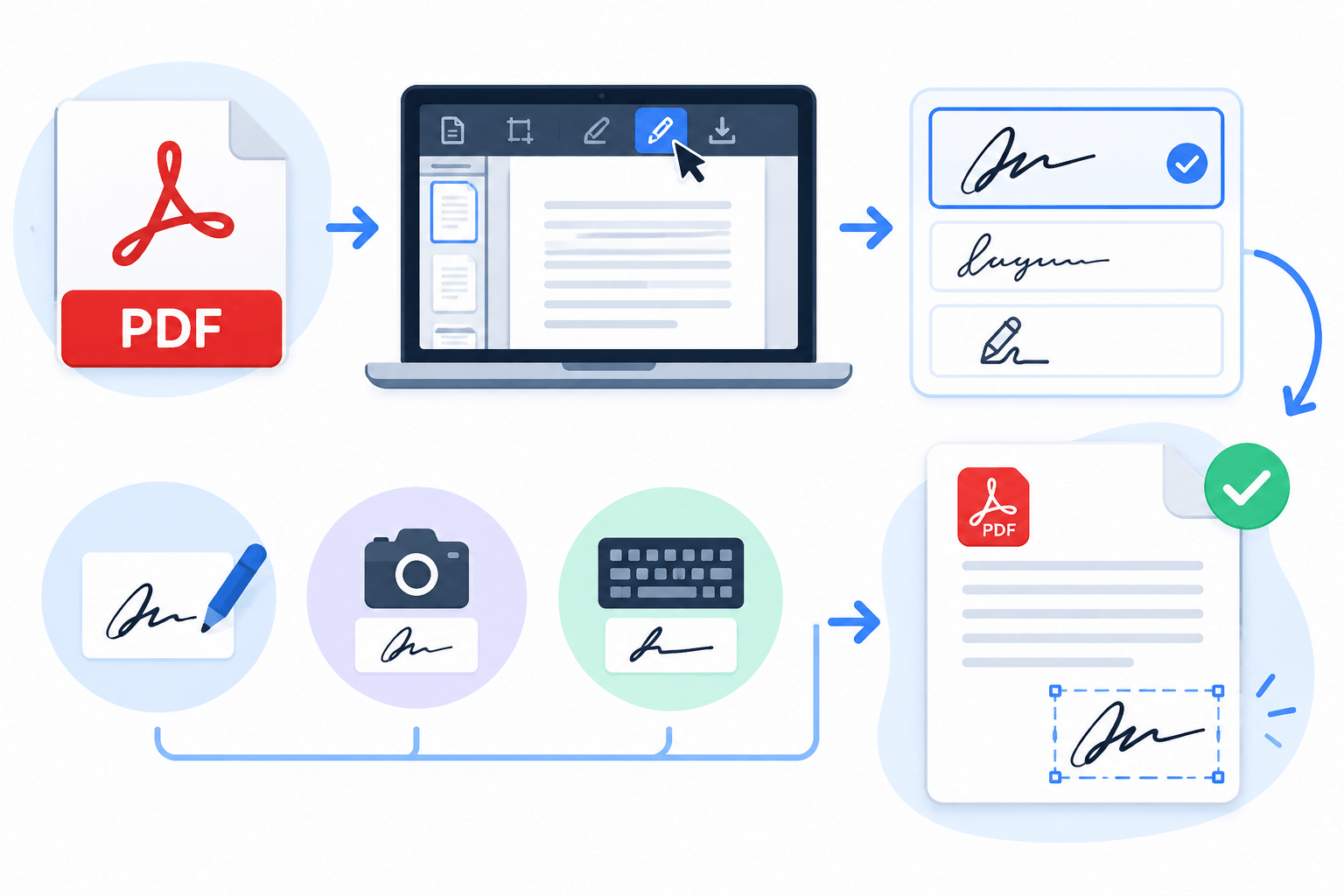
Signing documents is something most of us have to do sooner or later. A job offer, a business agreement, an application form, an invoice, a rental document, or even a school form can suddenly appear in your inbox with one simple request.
Please sign and send it back.
The problem is that the document is usually a PDF. You may not have a printer nearby, and even if you do, printing the document, signing it, scanning it, and sending it back feels like a lot of work for one small signature.
Thankfully, you can add a signature to a PDF digitally without going through all those steps.
In this guide, we will explain how to add a signature to a PDF, the different ways you can create a digital signature, when you should use one, and some useful tips to make your signed documents look professional.
What Does It Mean to Sign a PDF
Signing a PDF means adding your signature to a PDF document electronically.
Your signature can be created in several ways. You can draw your signature with your mouse or touch screen, upload an image of your handwritten signature, or type your name and use it as a signature.
For example, if someone sends you a contract that needs your signature, you can open the PDF, add your signature in the correct location, and save the signed document.
No printer required.
No scanner required.
And no searching the office for that one pen that somehow disappears every time you need it.
Why Add a Signature to a PDF Online
Digital documents are now part of everyday work. Businesses, freelancers, students, landlords, employees, and customers regularly share documents online.
Adding a signature directly to a PDF can save time because you do not need to print the document first.
Here are some common situations where signing a PDF can be useful.
- Signing employment documents
- Approving business agreements
- Signing invoices
- Completing applications
- Signing rental documents
- Approving project documents
- Signing permission forms
- Sending signed contracts
- Returning official paperwork
Instead of turning a digital document into paper and then turning it back into a digital file, you can keep the entire process digital.
How to Add a Signature to a PDF
Adding a signature does not have to be complicated. With an online PDF signing tool, you can usually complete the process in a few simple steps.
Step 1. Open the Sign PDF Tool
Start by opening the Sign PDF tool.
The tool is designed specifically for adding a signature to a PDF. It supports drawing, uploading, or typing a signature and placing it on the document.
Step 2. Upload Your PDF
Choose the PDF document that you want to sign.
Make sure you select the correct file before continuing. This sounds obvious, but accidentally signing an old version of a contract is a surprisingly easy mistake.
Once the PDF is uploaded, you can work with the document inside the editor.
Step 3. Create Your Signature
You can create your signature in different ways depending on what looks best for you.
You can draw your signature.
You can upload an image of your handwritten signature.
You can type your name.
If you have a touchscreen device, drawing your signature with your finger or stylus can feel more natural.
If you are using a computer, you can use your mouse or trackpad.
If you already have a clean image of your handwritten signature, uploading it can give you a more natural handwritten appearance.
Step 4. Place Your Signature
After creating your signature, place it where it belongs in the PDF.
You may need to move the signature slightly so that it sits neatly above the signature line.
Take a quick look at the surrounding text before placing it. You do not want your signature covering the date, name, price, or some other important piece of information.
Step 5. Check the Signature
Before saving the document, review the entire page.
Check that your signature is in the correct location.
Check that the size looks reasonable.
Check that it is not covering important text.
Check that you signed the correct document.
This takes only a few seconds and can save you from having to send another email saying, "Sorry, please ignore the previous attachment."
Step 6. Save the Signed PDF
Once everything looks correct, save your signed PDF.
You can then use the signed document wherever it is needed.
Three Simple Ways to Create a PDF Signature
There is no single correct way to create a signature. The best option depends on the device you are using and how you want the final document to look.
Draw Your Signature
Drawing your signature is one of the most natural options.
You can use a mouse, trackpad, touchscreen, or stylus.
This works particularly well if you are comfortable writing digitally.
The only downside is that a mouse can sometimes turn your beautiful signature into something that looks like a nervous heartbeat.
Do not worry. It happens to everyone.
Upload a Signature Image
If you already have a handwritten signature saved as an image, you can upload it.
For the best result, use a clear image with good contrast and a clean background.
A transparent background can also help the signature blend naturally into the document.
This option is useful if you frequently sign documents and want your signature to look consistent.
Type Your Name
Typing your name is another simple option.
This can be useful when you do not need the appearance of a handwritten signature or when you simply want to sign a document quickly.
Depending on the tool, your typed name may be displayed in a signature style.
How to Make Your PDF Signature Look Professional
A signature does not need to be complicated to look professional.
Here are a few simple tips.
Keep the Signature Size Reasonable
Your signature should fit naturally into the document.
Avoid making it so large that it takes over half the page.
At the same time, do not make it so tiny that someone needs a magnifying glass to find it.
Place It in the Correct Location
If the PDF has a signature line, place your signature directly above or near it.
If there is a dedicated signature box, keep the signature inside the box.
Use a Clean Signature Image
If you upload a signature image, make sure it is clear and readable.
Avoid using a blurry photograph of a piece of paper.
A clean signature image will look much better in the final PDF.
Check the Final Document
Always review the signed document before sending it.
Look at the signature and the surrounding information.
Make sure the correct document was signed and that nothing important was accidentally covered.
What Is the Difference Between an Electronic Signature and a Digital Signature
The terms electronic signature and digital signature are sometimes used as if they mean exactly the same thing, but they can refer to different things.
An electronic signature generally means an electronic way of showing that someone has signed or approved a document.
A digital signature is a more technical security method that can use certificates and cryptographic technology to verify the signer and protect the document from changes.
For everyday documents, adding a visible signature to a PDF may be enough. However, some legal, financial, government, or business documents may require a specific type of electronic or digital signature.
Always check the requirements of the organization receiving the document.
Is a Signature Added to a PDF Legally Valid
The legal validity of electronic signatures depends on the country, type of document, and circumstances.
Many types of documents can be signed electronically, but some documents may have specific requirements.
For important contracts or legally sensitive documents, check the applicable laws and requirements before relying on a simple PDF signature.
An online PDF signing tool can help you place a signature on a document, but the tool itself does not decide whether that signature satisfies a particular legal requirement.
Can I Sign a PDF Without Printing It
Yes.
If you use an online PDF signing tool, you can add your signature directly to the PDF.
The basic process is simple.
- Upload the PDF.
- Create or upload your signature.
- Place the signature.
- Review the document.
- Save the signed PDF.
This can be much faster than printing, signing, scanning, and uploading the document again.
Can I Sign a PDF on a Phone
Yes, if the PDF signing tool works with mobile devices.
A phone can be particularly convenient because you can draw a signature directly on a touchscreen.
You can also upload a signature image if you already have one saved on your device.
Before sending the document, check the final PDF carefully. Small screens can make it harder to notice if your signature is slightly out of place.
What If the PDF Has Other Changes I Need to Make
Sometimes signing is only the last step.
You may need to add text, draw something, insert an image, or make another change before signing the document.
In that situation, you can use the PDF editor first.
The PDF Editor lets you add text, images, shapes, and drawings to a PDF.
After making the necessary changes, you can move on to signing the document.
What If I Need to Highlight or Comment on the PDF
If the document needs notes, highlights, comments, drawings, or sticky notes, you may want to annotate it before signing.
The Annotate PDF tool is designed for highlighting, commenting, drawing, and adding sticky notes to a PDF.
This can be useful when reviewing contracts, reports, proposals, or other documents before approval.
What If the PDF Is Too Large to Send
Sometimes you finish signing the document and then discover that the PDF is too large to attach to an email.
That is where PDF compression can help.
The Compress PDF tool reduces PDF file size while allowing you to control the quality.
Compressing a PDF can make it easier to upload, email, or share online.
Just remember to check the compressed document after processing, especially if the document contains important text or signatures.
What If the PDF Has Too Many Pages
If you only need to sign or send certain pages from a large PDF, you may want to split the document first.
The Split PDF tool can split a PDF using page ranges or extract individual pages into separate files.
This is useful when you only need to send a few pages instead of the entire document.
How to Sign a PDF Step by Step
Here is the complete process in a quick format.
- Open the Sign PDF tool.
- Upload your PDF.
- Create your signature by drawing, typing, or uploading it.
- Place the signature on the correct part of the document.
- Adjust the size and position.
- Review the document.
- Save the signed PDF.
- Send or share the completed document.
That is it.
No printer.
No scanner.
No paper pile sitting on your desk judging your life choices.
Common Mistakes to Avoid When Signing a PDF
Even though signing a PDF is simple, a few mistakes are worth avoiding.
Signing the Wrong Version
Make sure you are working with the latest version of the document.
Placing the Signature in the Wrong Location
Check the signature line or signature box before placing your signature.
Making the Signature Too Large
A signature should look like part of the document, not like a logo for a new company.
Covering Important Text
Make sure the signature does not cover dates, names, amounts, or other important information.
Forgetting to Review the Final PDF
Always open the completed document and check it before sending it.
Using the Wrong Type of Signature
Some organizations may require a specific signing method. If the recipient has provided instructions, follow them carefully.
Why Online PDF Signing Is Useful
Online PDF signing can make document handling much easier.
You can sign documents from your computer or mobile device.
You do not need to print documents.
You can avoid scanning paperwork.
You can finish documents faster.
You can keep the workflow digital.
For people who regularly work with contracts, forms, invoices, applications, or business documents, these small time savings can add up quickly.
Final Thoughts
Adding a signature to a PDF does not need to be a complicated process.
Whether you draw your signature, upload a handwritten signature image, or type your name, you can add it directly to your document and finish the job without printing and scanning.
The important part is to place the signature correctly, check the final document, and make sure the signing method meets the requirements of the person or organization receiving it.
When you are ready to sign your document, try the Sign PDF tool and complete the process online.
And once you get used to signing PDFs digitally, you may start wondering why you ever owned a printer in the first place.