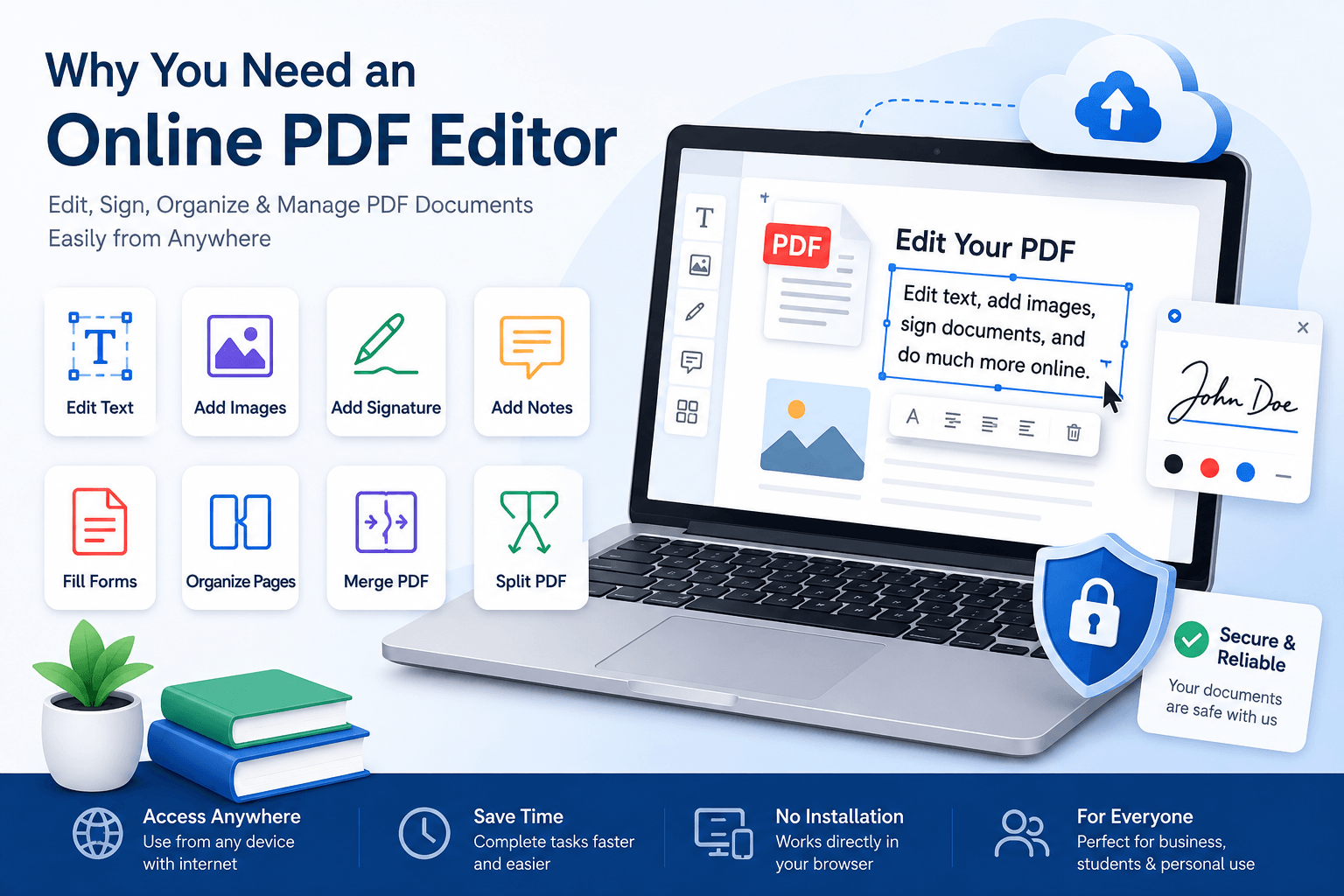
With an online PDF editor, you can make many common changes directly from your browser. You can edit existing text, add new text, update information, and make other small changes without opening a desktop PDF application.
In this guide, we will show you how to edit text in a PDF without Adobe Acrobat. We will also cover scanned PDFs, password protected files, common editing problems, and a few tips to help you get better results.
Can You Edit a PDF Without Adobe Acrobat?
Yes, you can.
Adobe Acrobat is one of the best known PDF tools, but it is not the only option. Online PDF editors can handle many everyday PDF tasks without requiring you to install software on your computer.
For example, you may want to:
- Fix a spelling mistake
- Change a name or address
- Update a date
- Change a price or other number
- Add missing information
- Add notes to a document
- Make small formatting changes
If you only need to change one word in a PDF, installing a large application can feel like buying a new car because you need to go around the corner. An online editor is often much quicker.
How to Edit Text in a PDF Without Adobe Acrobat
The exact buttons can be different from one PDF editor to another, but the basic process is usually quite simple.
1. Open an Online PDF Editor
First, open an online PDF editor in your browser.
Look for a tool that supports editing existing PDF text. Some tools also include features for adding text, signing documents, adding images, merging PDFs, and more.
One advantage of using an online tool is that there is usually nothing to install. Open the website, upload your file, and start working.
If you want to get started right away, you can open the PDF editor here.
2. Upload Your PDF
Find the upload button and select the PDF you want to edit.
Some websites also let you drag and drop the file directly into the editor.
Once the file is uploaded, give the editor a moment to process it. A small PDF may open almost immediately, while a larger document may take a little longer.
3. Select the Text Editing Tool
After your PDF opens, look for the text editing option.
Depending on the editor, you may be able to click directly on the text you want to change. In other tools, you may need to select the Edit Text option first.
Click on the text and see if you can place the cursor inside it.
If you can, you are ready to make your changes.
4. Change the Text
Now simply edit the text as you normally would.
You can correct a spelling mistake, replace an old address, update a company name, change a date, or modify other information.
For example, if your document says:
Company Name: ABC Solutions
And the company name has changed, you can replace it with:
Company Name: ABC Digital Solutions
No printing. No handwriting. No scanning the document again. That is the nice part.
5. Adjust the Formatting
After changing the text, check how it looks.
Depending on the PDF editor, you may be able to change the:
- Font
- Font size
- Text color
- Text alignment
- Bold formatting
- Italic formatting
Try to keep the new text similar to the original text. If the whole document uses a small professional font and your new sentence suddenly looks like a birthday invitation, something probably needs adjusting.
6. Add New Text if Needed
Sometimes you do not need to replace existing text. You simply need to add something that is missing.
Most online PDF editors have an Add Text option for this.
Select the tool, click where you want the text to appear, and type your content.
This can be useful for adding:
- Names
- Dates
- Addresses
- Contact details
- Notes
- Instructions
- Additional information
7. Check Your Changes
Before saving the PDF, take a quick look through the document.
Make sure the text is in the right place and that nothing else has moved.
Pay extra attention to names, prices, dates, account numbers, email addresses, and phone numbers. A single wrong number can cause much more trouble than a missing comma.
8. Download the Edited PDF
Once everything looks good, save or download the edited PDF.
It is a good idea to open the downloaded file and check it once more. This confirms that your changes were actually saved in the final PDF.
How to Replace Existing Text in a PDF
Replacing text is one of the most common reasons people need a PDF editor.
For example, imagine you have an old business document that contains your previous office address. You want to update the address without rebuilding the entire document.
Open the PDF in an editor that supports text editing, select the old address, and replace it with the new one.
After making the change, check the spacing around the text. PDFs do not always behave exactly like Word documents, so changing a few words can sometimes affect the surrounding layout.
How to Add Text to a PDF
If the PDF does not contain a text field where you need one, you can usually add text manually.
Choose the Add Text tool and click on the page. Type your text and adjust the position and size until it fits with the rest of the document.
This is useful when you need to add a date, short note, address, label, or other information to an existing PDF.
What If You Cannot Select the Text?
This is a common problem.
You open the PDF, click on the words, and nothing happens. The PDF looks like it contains text, but the editor treats the entire page like one big picture.
In many cases, that means the PDF is actually a scanned document.
A scanned PDF is often made from images of paper documents. The words you see are part of the image, so they are not automatically editable.
This is where OCR can help.
What Is OCR?
OCR stands for Optical Character Recognition.
In simple terms, OCR looks at an image and tries to recognize the words inside it. It then converts those words into actual text that software can read and, in some cases, edit.
For example, if you scan a printed invoice, OCR can recognize the text on the invoice. An editor that supports OCR may then allow you to search or edit that text.
The quality of the result depends on the original document. A clean, sharp scan usually works much better than a blurry photo of a document taken from across the room.
Can You Edit Every PDF?
Not always.
PDF files can be created in many different ways. Some contain normal selectable text, while others contain scanned images, graphics, forms, or other elements.
Some PDFs may also have editing restrictions.
If you cannot select the text, first check whether the PDF is scanned. If it is, look for a PDF editor with OCR support.
If the file is protected, you may need the appropriate password or permission before you can edit it.
How to Edit a Password Protected PDF
Some PDF files have security settings that prevent editing.
If you own the document and know the password, enter it when prompted and use the editing features available to you.
If you do not have permission to change the document, you should not try to bypass its security settings.
For business documents, contracts, official forms, and other important files, it is always better to make sure you have permission before making changes.
What Happens to the Original PDF?
This depends on the editor, but it is always a good idea to keep your original file somewhere safe.
Instead of treating the original PDF as your working copy, keep it as a backup and edit a copy of the file.
A simple approach is:
- Keep the original PDF
- Upload a copy to the PDF editor
- Make your changes
- Review the document
- Download the edited version
- Keep the original and edited versions separately
This is especially useful for important documents. If you accidentally delete something, you will have the original to fall back on.
Common Problems When Editing PDF Text
The Text Cannot Be Selected
The PDF may be a scanned document or image based. Try using a tool with OCR support.
The New Text Uses a Different Font
The original font may not be available in the editor. Try choosing a similar font and adjusting the size.
The Layout Changes
Changing text can sometimes affect spacing and positioning. Review the surrounding content after making your edit.
The Text Looks Too Large or Too Small
Adjust the font size until it matches the surrounding text. You may also need to adjust the position of the text.
The Downloaded PDF Looks Different
Always open the final PDF after downloading it. This gives you a chance to catch any layout or formatting problems before sending the file to someone else.
Online PDF Editor vs Adobe Acrobat
Adobe Acrobat is a powerful PDF application and is useful for people who regularly work with advanced PDF features.
But if you only need to make a few changes, an online PDF editor may be enough.
For everyday tasks, you may be able to use an online editor to:
- Edit text
- Add text
- Add images
- Sign a PDF
- Highlight content
- Add annotations
- Merge PDF files
- Split PDF files
- Compress PDFs
The right choice depends on what you need to do. If you edit PDFs every day and need advanced features, desktop software may make sense. If you need to fix a document once in a while, an online tool can be much more convenient.
Tips for Editing PDF Text
- Keep a copy of the original PDF
- Check the document before downloading it
- Try to match the original font and size
- Check the spacing after changing text
- Double check names, dates, prices, and numbers
- Use OCR when working with scanned documents
- Use a trusted service for sensitive documents
- Open the final PDF before sending it to someone else
Is It Safe to Edit a PDF Online?
Online PDF tools are convenient, but you should think about the information contained in your document before uploading it.
If the PDF contains private, financial, legal, business, or other sensitive information, use a PDF service that you trust and check its privacy and security policies.
For less sensitive documents, an online editor can be a quick and convenient way to make changes without installing software.
Basically, do not upload your confidential company documents to a random website just because it has a large Edit PDF button. The button can be big. Your privacy should be bigger.
Frequently Asked Questions
Can I edit a PDF for free without Adobe Acrobat?
Yes. Many online PDF editors offer free editing features. The available features and usage limits depend on the service you choose.
Can I edit a PDF on my phone?
Yes. Many online PDF editors work in mobile browsers, so you can edit supported PDF files from a smartphone or tablet.
Can I edit a scanned PDF?
Yes, but you may need OCR. A scanned PDF is usually an image, so the text needs to be recognized before it can be edited like normal text.
Do I need to install software?
No. If you use an online PDF editor, you can usually work directly from your browser.
Can I add new text to a PDF?
Yes. Most PDF editors provide an Add Text feature that lets you place new text anywhere on a page.
Can I edit a PDF without changing the layout?
In many cases, yes. However, the result depends on how the PDF was created and how the editor handles fonts, spacing, and other page elements.
Final Thoughts
You do not need Adobe Acrobat every time you need to change something in a PDF.
For simple edits, an online PDF editor can save you time and avoid the need to install additional software. You can correct mistakes, update information, add text, and make other common changes directly from your browser.
The basic process is simple: upload the PDF, open the text editing tool, make your changes, check the layout, and download the finished file.
If the text cannot be selected, do not immediately assume the PDF is broken. It may simply be a scanned document. In that case, look for an editor with OCR support.
And remember to keep the original file. Future you will probably be very happy that present you made a backup.
So the next time you find a small mistake in a PDF, you do not have to print the whole document just to fix three letters. Open the online PDF editor, make the change, check the result, and get on with your day.