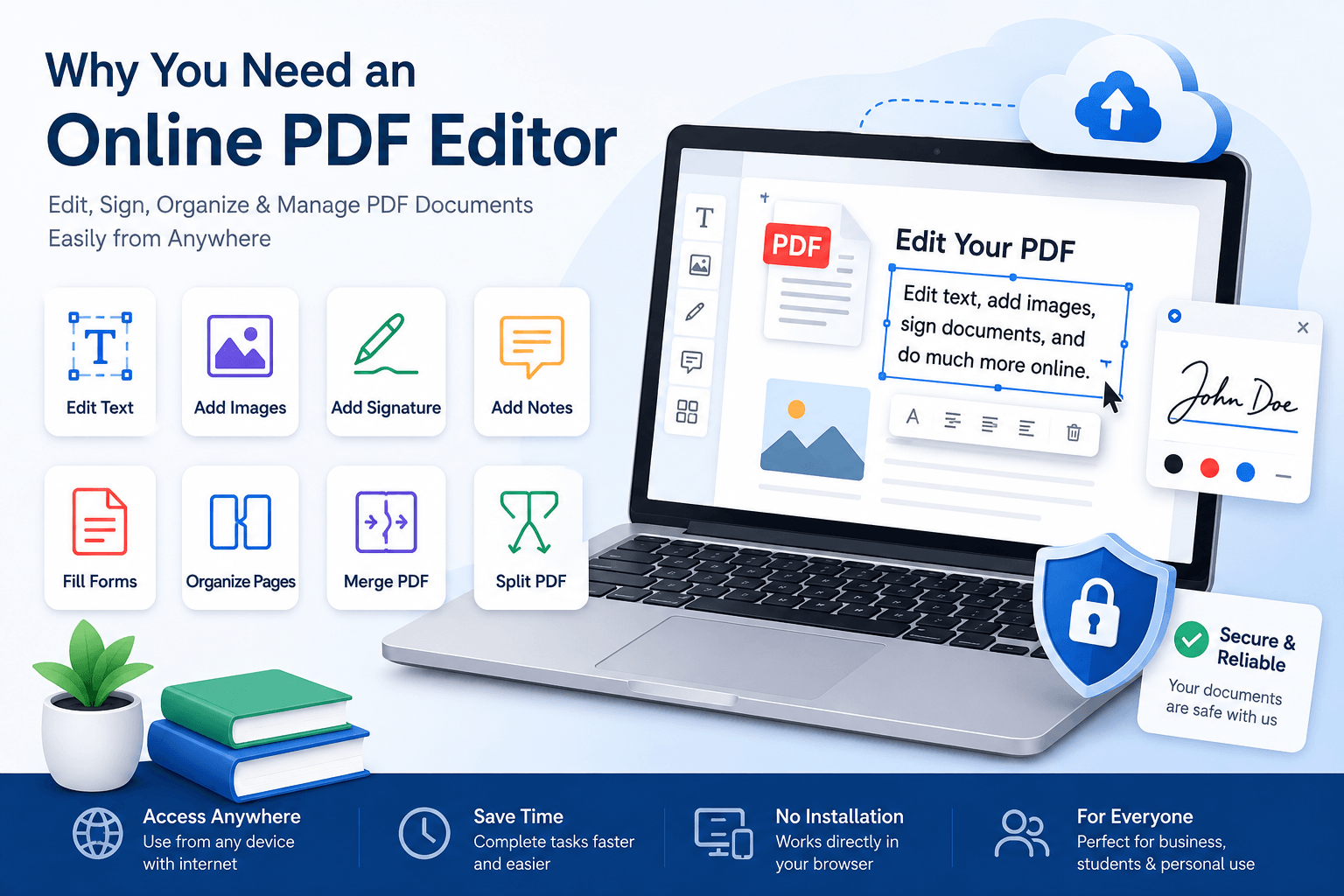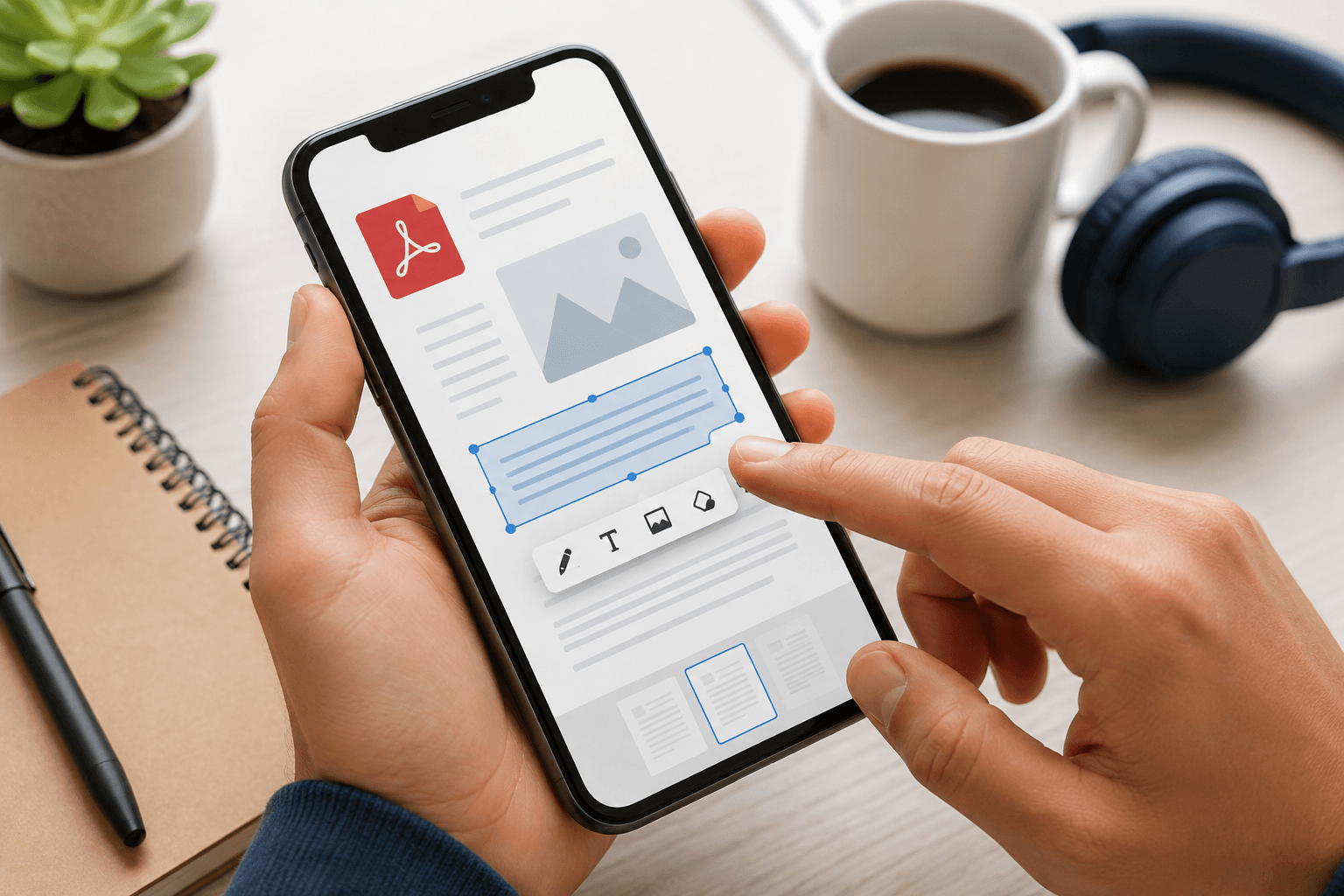
Whether you need to correct a small mistake, add some text, fill out a form, sign a document, or make a quick change before sending a file, you can edit a PDF directly from your phone without paying for expensive software.
In this guide, we will show you how to edit a PDF on your phone for free using an online PDF editor.
Can You Edit a PDF on Your Phone?
Yes. You do not need a computer or a complicated PDF application to make basic changes to a PDF.
An online PDF editor lets you open your document in your phone browser, make the changes you need, and download the updated file.
The best part is that there is usually nothing to install. Just open your browser, upload your PDF, edit it, and save it.
What Can You Edit in a PDF?
Depending on the PDF editor you use, you can make several common changes from your phone.
- Add text to a PDF
- Highlight important information
- Add a signature
- Draw or annotate the document
- Add images
- Fill out PDF forms
- Move or remove pages
- Add notes and comments
- Save the edited PDF to your phone
So if you only need to make a quick change, there is no reason to start hunting for your old laptop charger.
How to Edit a PDF on Your Phone for Free
Step 1: Open a PDF editor
Open your phone browser and go to our free online PDF editor:
You can use the tool directly from your mobile browser. There is no need to install a large application just to change a few words in a document.
Step 2: Upload your PDF
Select the PDF file you want to edit from your phone.
Depending on your phone, the file may be stored in your Downloads folder, Files app, Google Drive, or another storage location.
Select the document and wait for it to load in the editor.
Step 3: Make your changes
Once the PDF is open, choose the editing option you need.
For example, you may want to add a missing phone number, correct a date, highlight a sentence, or add your signature.
Make your changes carefully. Editing a PDF on a phone is easy, but typing with one thumb while standing in a grocery store is still an extreme sport.
Step 4: Review the PDF
Before saving the document, take a quick look at your changes.
Check that the text is in the right place, the signature looks correct, and no important content has been accidentally covered or moved.
Step 5: Download the edited PDF
When you are happy with the result, use the download or save option in the PDF editor.
Your updated PDF can then be saved to your phone and shared by email, messaging apps, cloud storage, or wherever you need it.
How to Add Text to a PDF on Your Phone
Adding text is one of the most common reasons people need to edit a PDF.
Open the PDF in the editor, select the text tool, tap where you want the text to appear, and enter your information.
You can use this when you need to add an address, phone number, date, short note, or other information to a document.
How to Sign a PDF on Your Phone
You do not always need to print a document, sign it with a pen, scan it, and send it back. That whole process feels like it belongs in another decade.
With an online PDF editor, you can add a signature directly to the document from your phone.
Open the PDF, select the signature or drawing option if available, add your signature, position it in the correct location, and save the document.
How to Edit a PDF Without Installing an App
If you do not want another app taking up space on your phone, an online PDF editor is a convenient option.
You can use your existing mobile browser instead. Simply open:
Then upload your PDF and start editing.
This can be especially useful when you only need to edit a document occasionally and do not want to install a dedicated PDF application.
Is It Free to Edit a PDF on Your Phone?
Basic PDF editing can be done for free with online PDF tools. However, features and limits can vary between different services.
If you only need simple edits such as adding text, annotations, or a signature, a free online PDF editor may be all you need.
Why Use an Online PDF Editor?
There are several reasons to use an online editor instead of installing desktop software.
- No computer required
- Works directly from your phone browser
- No large software installation
- Useful for quick edits
- Easy to share the finished document
- Convenient when you are away from your computer
Tips for Editing PDFs on Your Phone
Editing on a small screen is convenient, but a few simple habits can make the process easier.
- Use a stable internet connection when working with an online tool
- Zoom in when placing small text or signatures
- Review every page before downloading the final file
- Keep the original PDF if you may need it later
- Use a descriptive filename for the edited document
- Avoid editing sensitive documents on public or shared devices
Frequently Asked Questions
Can I edit a PDF from an iPhone?
Yes. You can use an online PDF editor through a mobile browser on an iPhone. Upload your document, make the required changes, and download the edited PDF.
Can I edit a PDF from an Android phone?
Yes. Android users can also open an online PDF editor in their browser and edit PDF documents directly from their phone.
Do I need Adobe Acrobat to edit a PDF?
No. Adobe Acrobat is one option, but it is not the only way to edit a PDF. For basic editing, an online PDF editor can be a simpler alternative.
Can I edit a PDF without downloading an app?
Yes. Online PDF editors work through your web browser, so you can edit documents without installing a separate application.
Can I edit a PDF for free?
Yes. Many online tools offer free PDF editing features. The available features and usage limits depend on the tool.
Edit Your PDF From Your Phone
You do not need a computer sitting on your desk just to make a small change to a PDF. Your phone can handle it.
Whether you need to add text, sign a document, highlight information, or make another quick edit, an online PDF editor can save you time and a few unnecessary steps.
Ready to give it a try?